
First steps
To get started with PRISM, check that you can run either the
graphical user interface (xprism) or the command-line version (prism),
as explained in the installation instructions.
In short, to run the PRISM GUI:
- (on Windows) click the short-cut (to
xprism.bat) installed on the Desktop/Start Menu - (on other OSs) run the
xprismscript in thebindirectory
and for the command-line:
- run the
prismscript in thebindirectory
You first need a model. Here is a small random walk, specified in the PRISM modelling language:
// A one-sided, one-dimensional random walk

dtmc

const int N = 10;
const double p = 0.5;

module M

	x : [0..N] init 0;

	[] x<N -> p:(x'=max(x-1,0)) + 1-p:(x'=x+1);
	[] x=N -> true;

endmodule

label "end" = x=N;
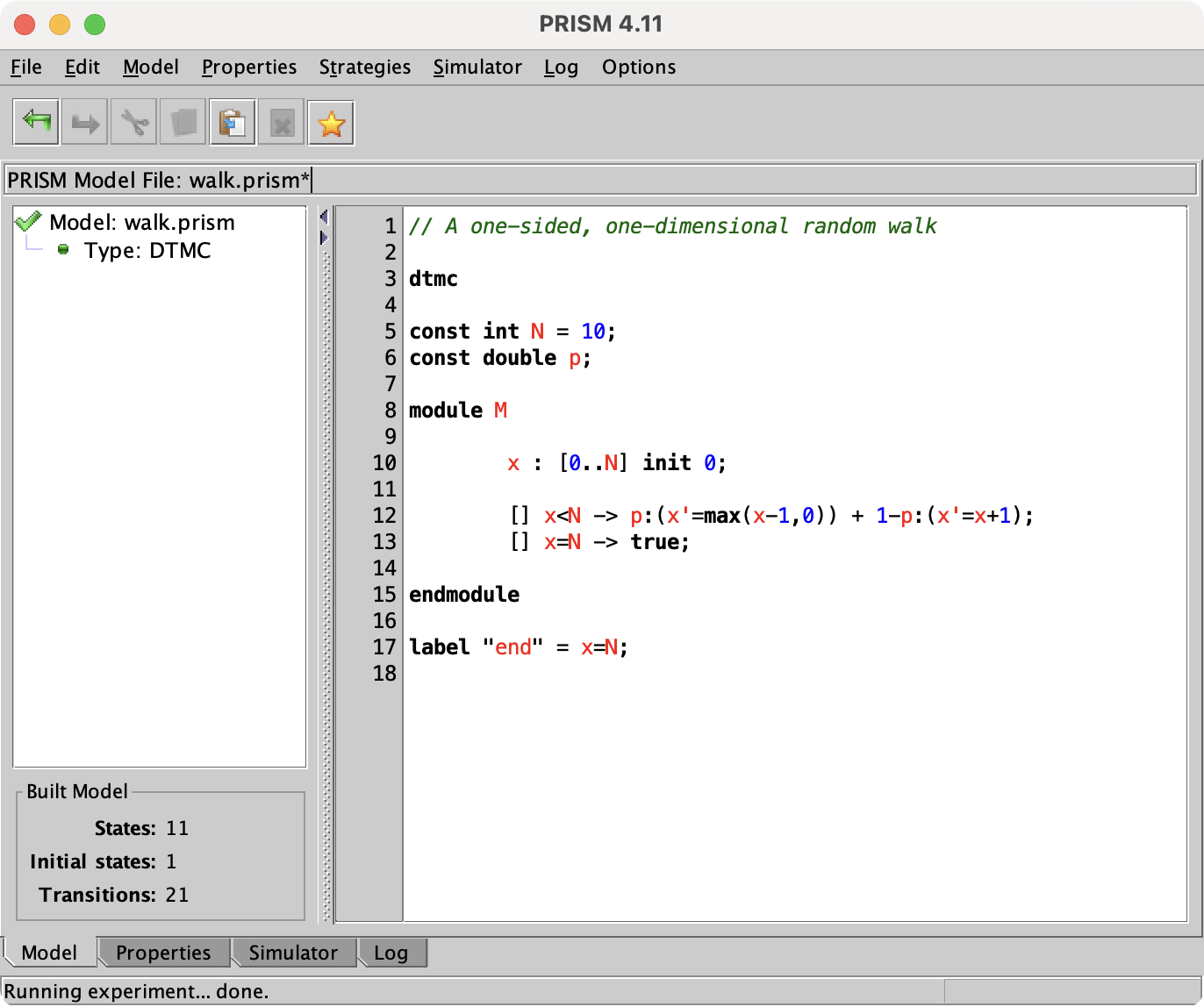
Loading it into the GUI (xprism walk.prism) lets us view and edit the model:
Some examples of properties to be checked are:
const int k;

// The walk reaches the end with probability 1
P>=1 [ F "end" ];

// What is the probability of reaching the end within k steps?
P=? [ F<=k "end" ];
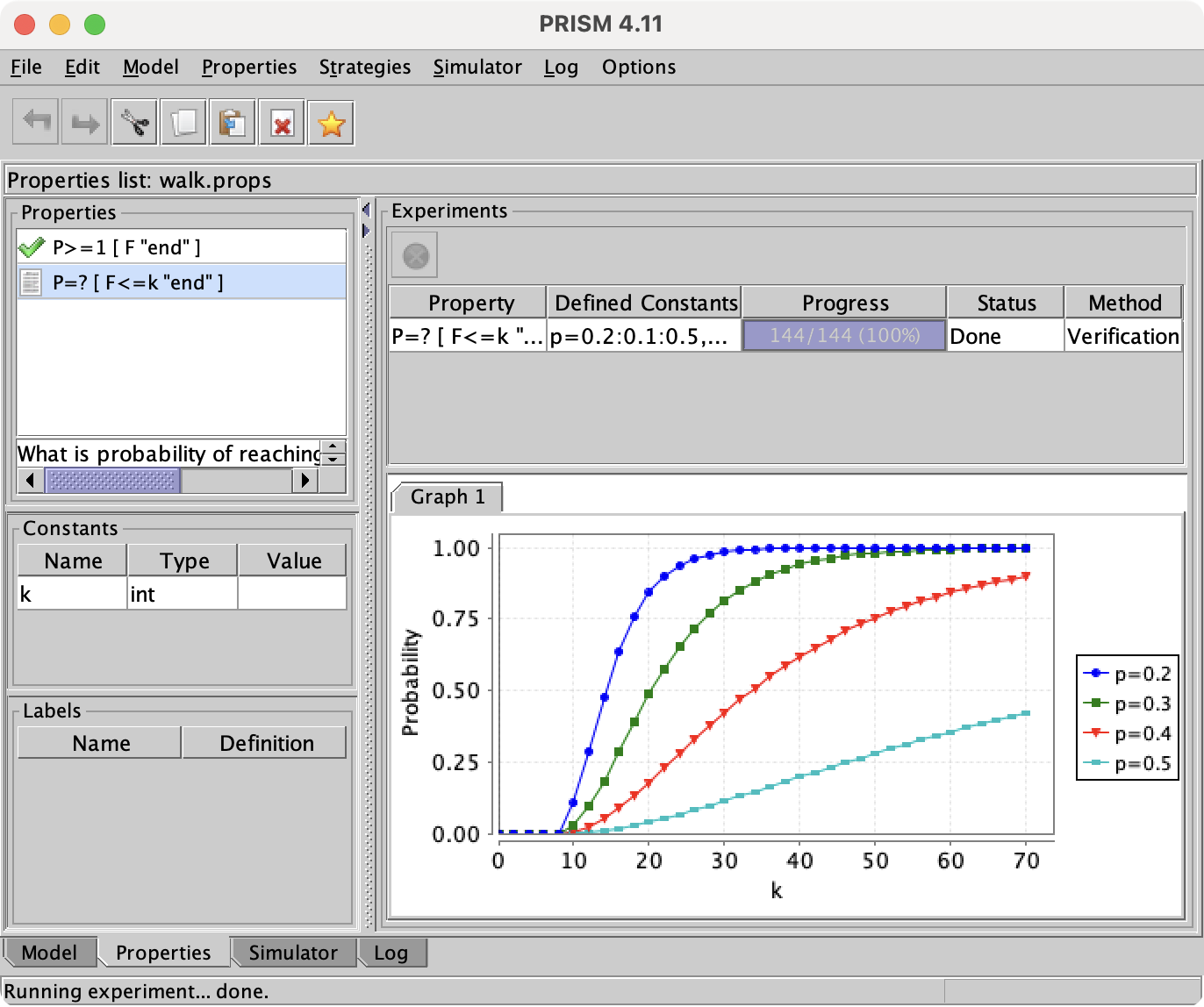
Also loading this properties file into the GUI (e.g., xprism walk.prism walk.props),
we can verify the first property to be true and,
by making a small change to the constant p and running an experiment,
we can start visualising results of the model's analysis:
All this and more can be done from the command line. Just giving the model file builds it and displays some statistics:
prism walk.prism
...
Type:        DTMC
States:      11 (1 initial)
Transitions: 21
...
or we can verify a property:
prism walk.prism walk.props -prop 1
...
Result: true
Full details of both the GUI and command-line versions of PRISM are given in the "Running PRISM" section of this manual. For more detailed walkthroughs of the tool, try the PRISM tutorial.